Have a good day. a little preparation behind every goodbye.
Wear it lightly, clip it to your phone, or send it out with what you carry every day. Safety should fit each person’s routine.
At the front door Junhyeok’s day begins.
Staged product-use image
Always close
Light to wear reassurance stays close
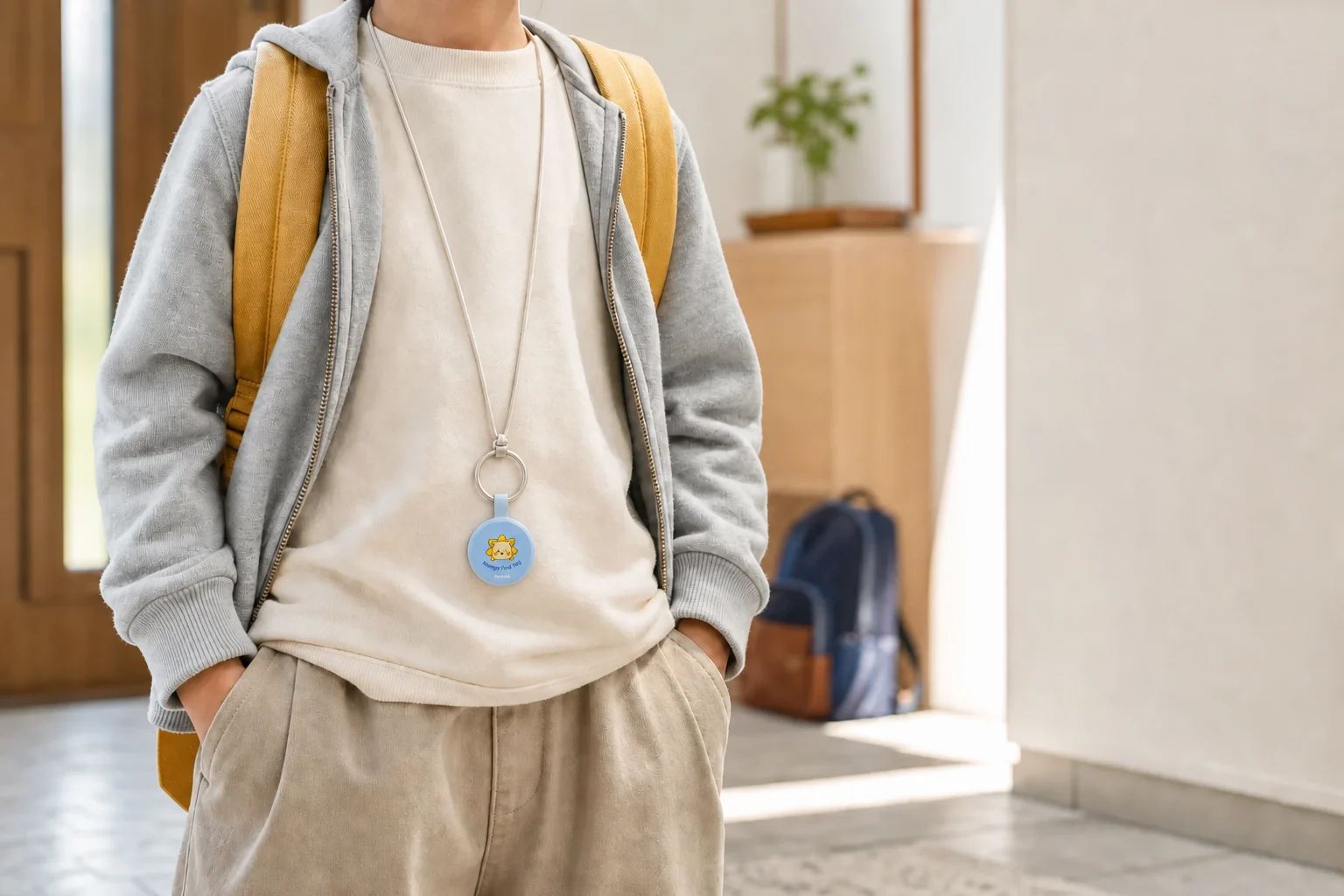
On field trips or busy event days, a neck strap keeps the tag close and visible, so its QR is easy to scan when needed.
Neck strap
Find Tag location check
QR finder alert
When worn, check the recommended age and activity setting, and have a guardian inspect how the tag is attached.
Staged product-use image
Always together
If you remembered your phone the tag comes too
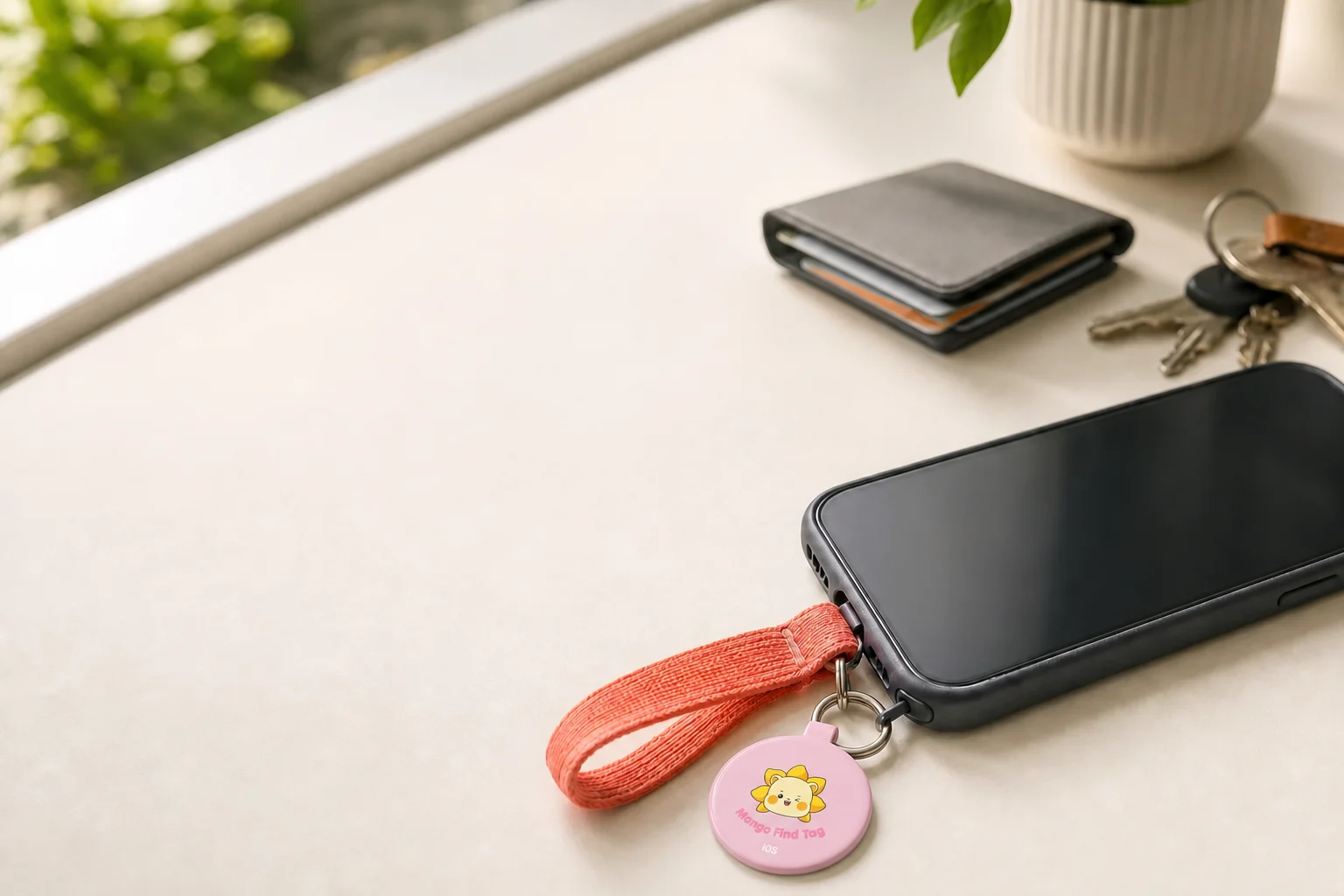
Your phone, card wallet, and pouch are already part of the morning routine. Attach Find Tag like a keyring, and being ready to find them takes no extra effort.
Phone · Pouch
Car key · Card wallet
Find Tag + QR Safety
For neck straps, check the recommended age and activity setting, and have a guardian inspect how the tag is attached.
The things we look for most
Keys disappear when you are rushing, wallets at the checkout, and suitcases in unfamiliar places. Start with what you reach for most.
Keys
Wallet
Backpack
Phone keyring
Travel suitcase
Bicycle
Neck strap
Staged product-use image
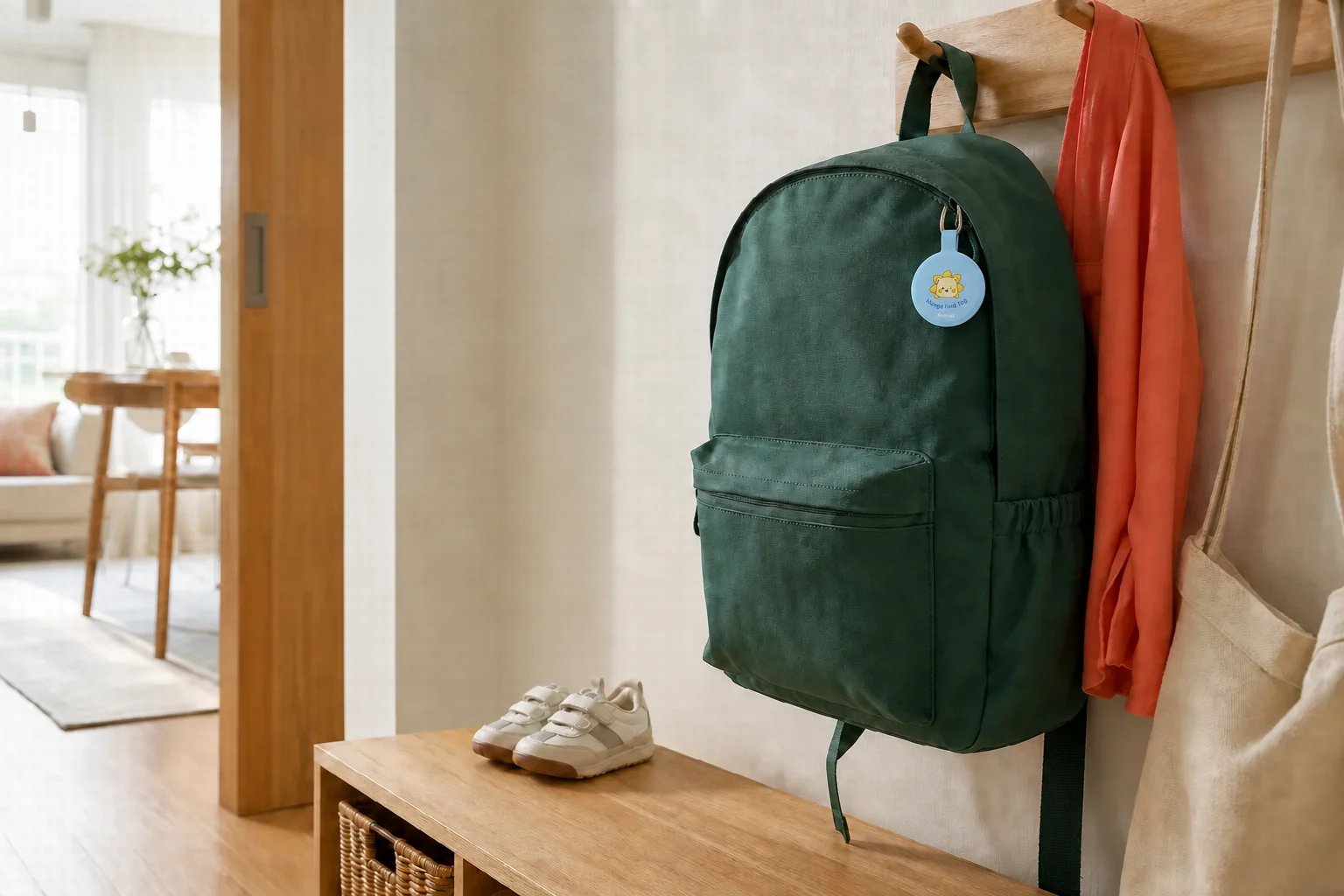
Every morning · School backpack
The first thing every morning The bag heads out
If the school bag goes missing between drop-off and pickup, start with the last known location. If someone finds it, the QR lets them alert the guardian.
While you search
Check the last known location in Find Tag.
After it is found
A finder scans the QR and alerts the guardian.
Staged product-use image
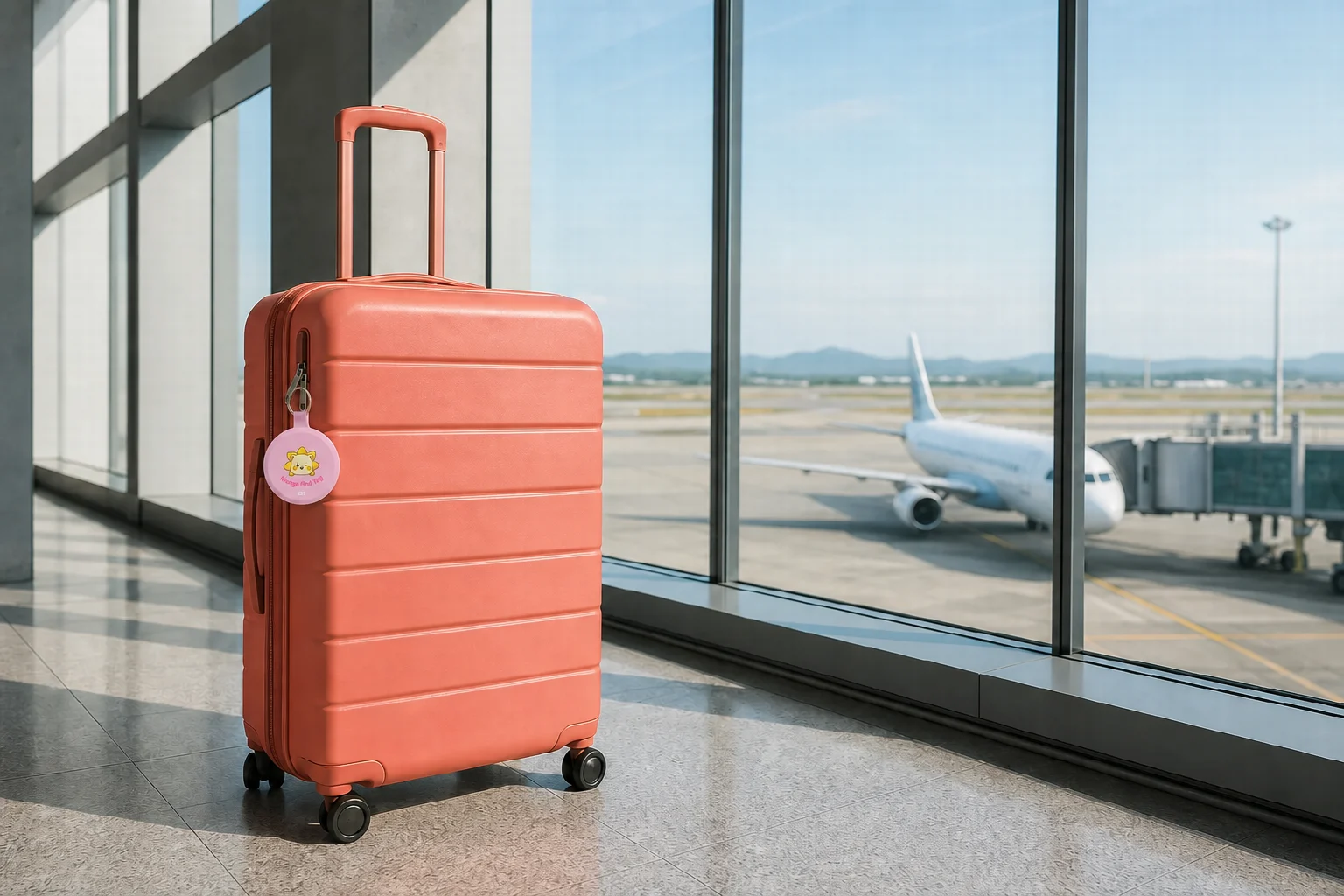
Far from home · Suitcase
The farther it goes One more way home
Away from home, a small mix-up can feel much bigger. Check the suitcase’s location, then use the finder’s photo or location update to decide what to do next.
While you search
Check the last known location along an unfamiliar route.
After it is found
Confirm the storage location and a photo from the scene in chat.
Staged product-use image
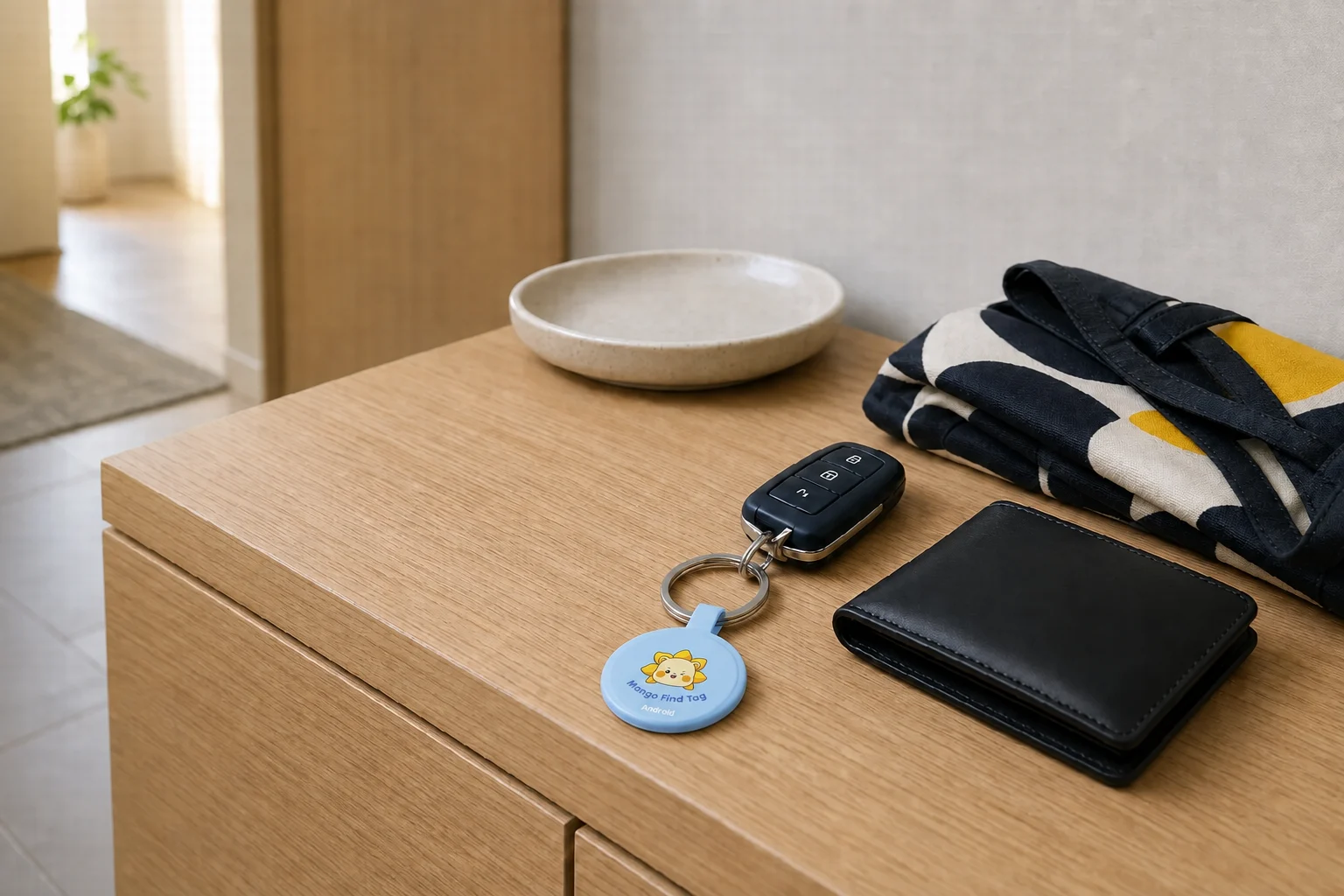
Before leaving · Everyday essentials
In its usual place When it is gone
Car keys right before work. A wallet at the checkout. The smaller and more familiar the item, the more sudden the panic. Check nearby locations and receive finder updates without revealing your contact details.
While you search
Check the surrounding area in the item-finding app you already use.
After it is found
Receive QR finder alerts without sharing your phone number.
Staged product-use image
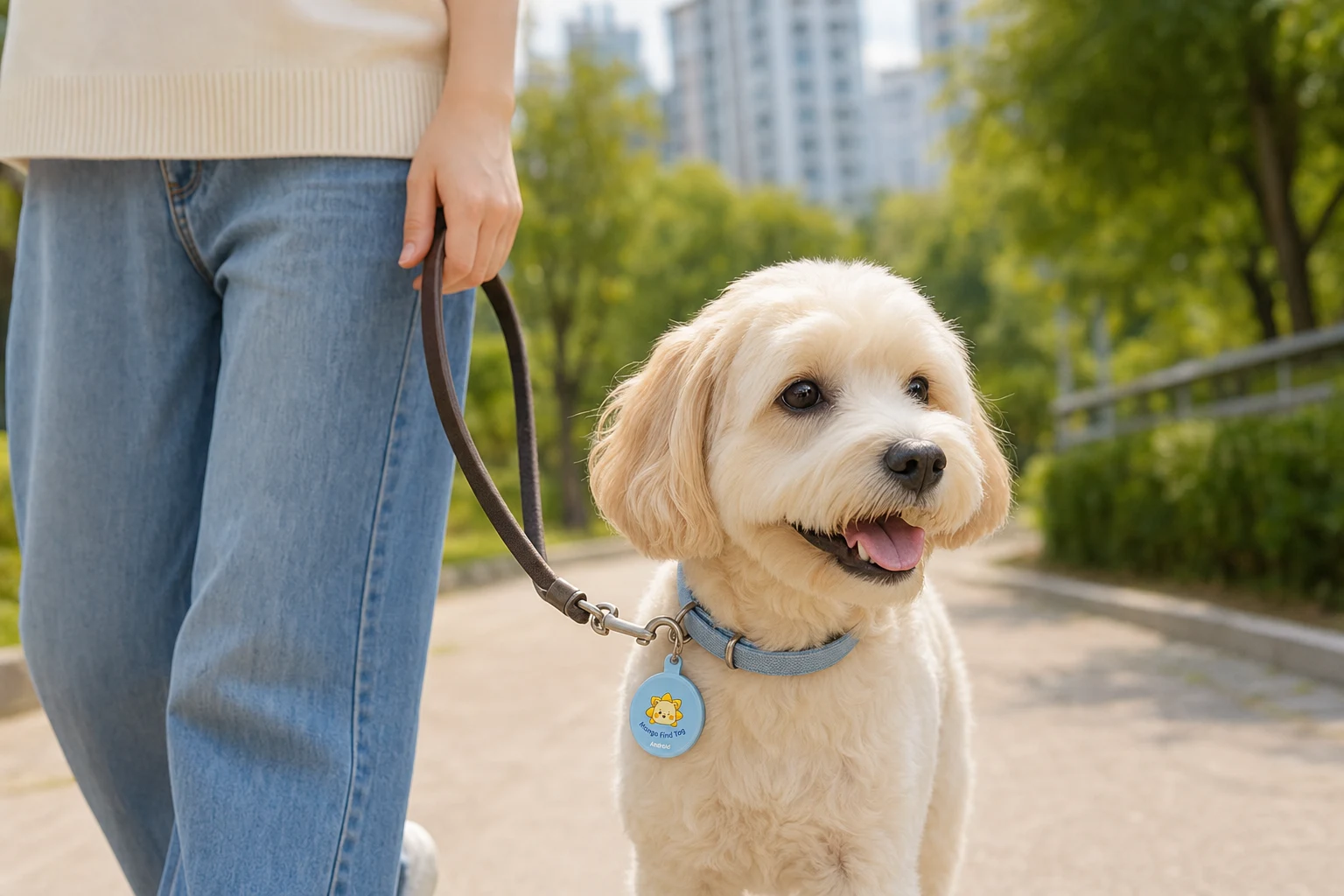
Close by · Walking the dog
While you call their name Each clue leads to the next
A leash slips loose or a pet darts through an open door. You search the familiar route first. Find Tag shows the last known location, while QR Safety lets a finder share where your pet is and how they are doing.
I look first
Check the last known location in the item-finding app listed with the product.
Someone else gets there first
A finder sends an alert by QR, then shares the current location and condition in chat.
This is not a dedicated pet GPS. Secure it firmly to a collar or harness and prevent chewing or swallowing.
This is not a dedicated pet GPS. Secure it firmly to a collar or harness and prevent chewing or swallowing.
Find where it fits your life
Find the right place in your day
Dog collar · HarnessStart with the last known location. If someone finds it first, the QR connects them directly to the guardian.
Bicycle · Mobility gearReview the last known location alongside a photo from where it was found.
Instrument · Camera bagBe ready for both the search and the moment someone finds your valued gear.
Find Tag location updates depend on nearby networks and the environment. It is not GPS and does not guarantee real-time tracking of people or pets.
Lifestyle images are staged to illustrate product use.
02 · START BY LOOKING YOURSELF
Every day I start the search.
Choose the product that matches your phone’s item-finding network.
01 / 02
with Android
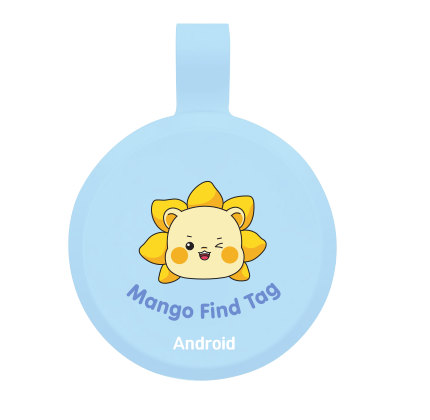
Product for Android
Check the last known location in the item-finding app you already use.
Before purchase, check support requirements on the product packaging and sales page.
Buy the product ↗
02 / 02
with iOS
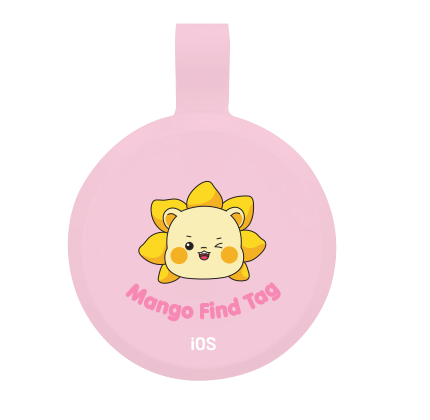
Product for iOS
Check the last known location in the item-finding app you already use.
Before purchase, check support requirements on the product packaging and sales page.
Buy the product ↗
03 · 09:31 · WHEN THE LOCATION STOPS
You were sure it was close Then the location stops updating.
Indoors or underground, location updates may be delayed and only the last known point may remain. Then someone notices the QR on the tag.
View only the safety information made public and connect directly with the guardian.
Connect with the guardian
After sending an alert, stay on this screen until the guardian responds.
Mango QR SafetySafety QR
Guardian connection
Junhyeok’s backpack
✓The guardian has been notified.
Please stay on this screen. The chat will open when the guardian responds.
Mango QR SafetySafety QR
Guardian connection
Junhyeok’s backpack
Connect with the guardian
Location is included only when the finder chooses to share it.
‹B Junhyeok’s backpack09:58•••
I found the bag.
Got it. Could you send your current location?
Yes, I sent a photo too.
+
Message (guardian)
●
04 · 09:42 · THE MOMENT SOMEONE FINDS IT
“I found the bag.” A short message from a stranger.
Scan with no sign-upAlerts without a phone numberLocation shared with consent
Privacy protectionDesign principle
Connect with the guardian before revealing contact detailsThe QR uses a Random ID. Only safety information the guardian marks public appears on the finder screen.
01
The finder scans the Safety QR
The finder opens the guardian connection screen with no app or sign-up.
02
The finder alerts the guardian
A finder can alert the registered guardian without knowing their phone number.
03
The finder chooses to share location
With the finder’s consent, the current location can be included in the alert.
04
The guardian opens the chat
The guardian can confirm where it is being kept and what is needed without exchanging contact details.
05 · 09:43 · WHEN THE GUARDIAN RESPONDS
A moment that felt impossible The conversation begins.
Guardian and finder share only what is needed in one chat—where it is, what to check, and what to do next.
Recent alerts1 QR
The guardian checks the finder alert and opens the chat.
Junhyeok’s backpack
1 alert
Without location
Turn on emergency standby to see new finder alerts sooner in the PWA.
‹B Junhyeok’s backpack
•••
Today, 09:43
Finder
I found the bag. It is being kept next to the information desk.
⌖
The finder sent a locationMapo-gu, Seoul · Current location
Guardian
Thank you. Could you send your current location and a photo?
Photos▶0:08
Message (finder)●
More actions for the guardian
⌖Request current location
▣Request photo
☎Request voice call
!Emergency call request
06 · 09:58 · SITUATION RESOLVED
Before you head out the next step becomes clear.
With location, photos, messages, and voice in one place, the guardian can confirm where it is being kept or ask for the right help.
Use the shared details to choose the right response—confirm where it is being kept, make an emergency call, or take the next appropriate step.
01Last location
02Finder update
03Chat
04Next step
07 · PRIVATE BY DEFAULT
The help continues without exposing contact details.
The QR contains a non-identifying Random ID—not a name or phone number. The guardian decides what information can be shown.
QR dataRandom ID onlySafety
Phone numberPrivate by defaultPrivate
Finder locationShared with consentWith consent
08 · FEATURE OVERVIEW
One Safety Premium plan, every safety feature.
From finder alerts to text chat, photos, location sharing, voice messages, private-number voice calls, and emergency call requests, every Safety Premium feature is available in one place.
01
PREMIUM
Safety Premium
Key feature · Connect safely with finders without sharing contact detailsWhen someone scans the QR, they can alert the guardian and communicate by text, photo, location, or voice as the situation requires.
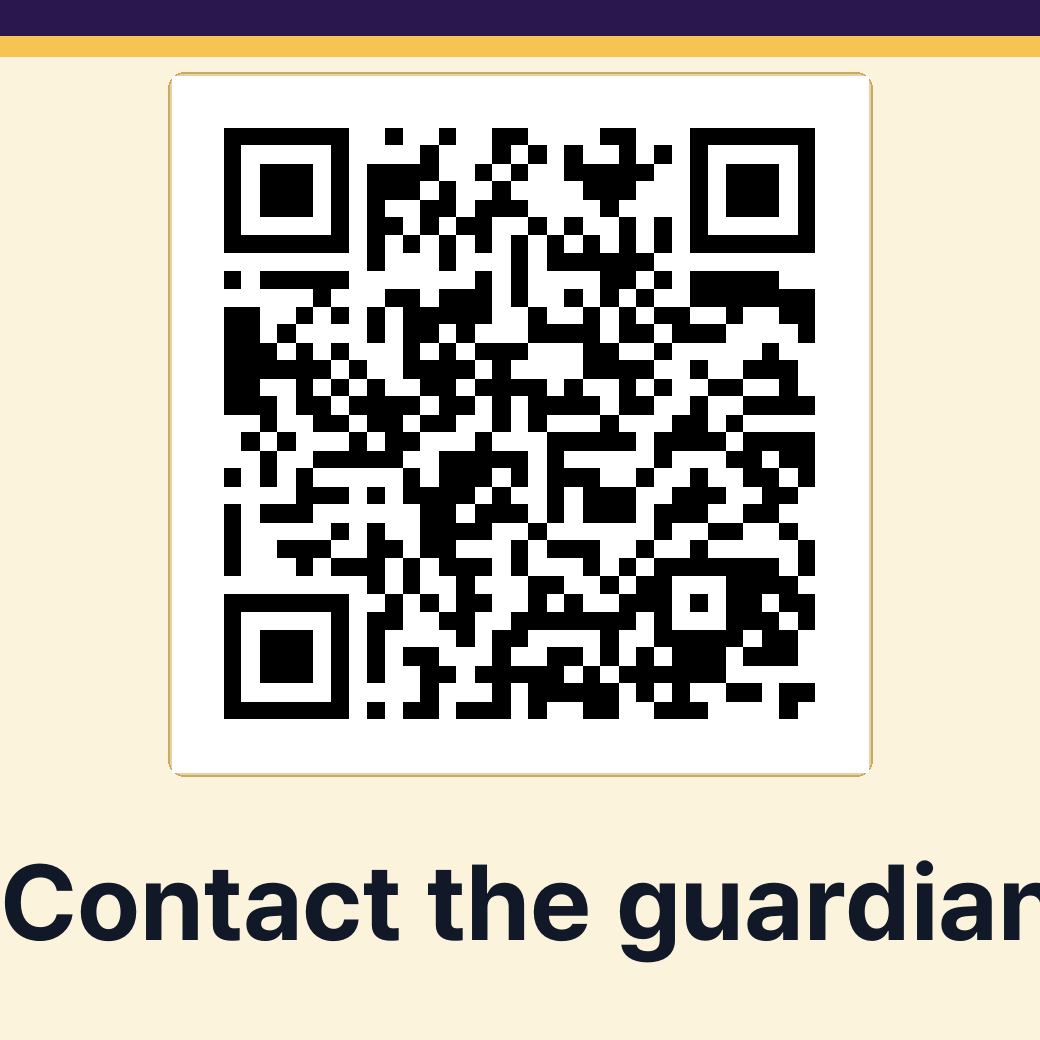
This QR is a finder-screen demo generated with the live Safety Premium design. It is not assigned to a particular product; review the included features before purchase.
PRODUCT FAQ
From before purchase to everyday use, find the answers in one place.
Clear answers about Find Tag location updates, QR registration, guardian alerts, and choosing a QR Safety plan.
FT
FIND TAG
Check the last reported location
Guardians use Google Find Hub or Apple Find My to review a location reported through the surrounding device network.
QR
QR SAFETY
Connect finders and guardians safely
A finder scans the QR to send an alert and shares a location or photo only when they choose to do so.
FIND TAG · 10 QUESTIONS
Find Tag FAQ
Compatibility, location updates, reconnection, and battery information.
01What is Find Tag?
MangoLion Find Tag is a loss-prevention tag attached to an item so you can review its last reported location through the surrounding device network.
02Can I buy the iPhone version now?
Not yet. The first release is the Android version using Google Find Hub. The iOS version using Apple Find My is planned for the first half of 2027.
03Can I use it on a device without Google Play?
App installation or some features may be limited on devices that do not support Google Play and the related Google services.
04Is it real-time GPS?
No. It is not a dedicated GPS tracker that continuously shows a person’s or pet’s current location. Timing and accuracy vary with the surrounding network and environment.
05How is the location determined?
Location support is based on Bluetooth and the Android device network. It is not real-time GPS, so update times vary with the surroundings and network conditions.
06Can I find it when it is far away from my phone?
Yes. A nearby Android device may detect the Find Tag and update its location. The update may be delayed when no compatible device is nearby or network conditions are poor.
07The alert sound does not play. What should I do?
Check the battery first.
08How do I connect it to another Android phone?
Remove the device from the existing account and reset it. After the reset, connect it again from the new Android phone.
09Is location information protected?
Location information is handled according to the user’s account and app settings. It is not shared with other people unless the user explicitly enables sharing.
10How long does the battery last?
Battery life depends on the environment, alert-sound frequency, and connection conditions. A low battery may reduce sound volume or make the connection unstable.
QR SAFETY · 9 QUESTIONS
QR Safety FAQ
QR registration, alerts, and personal information protection.
01What is QR Safety?
QR Safety lets a finder scan the QR attached to an item, alert its guardian without installing an app, and optionally share the situation through a location, photo, or message.
02Are there separate QR stickers for Android and iOS?
No. QR stickers work with both Android and iOS. Guardians can receive finder alerts by adding Mango QR Safety to their phone’s home screen and allowing notifications.
03How do I register a QR?
Scan the included QR, verify the phone number used for the purchase, and follow the on-screen steps to set guardian details and public safety information. A traditional ID-and-password signup is not required.
04Does the finder need to install an app?
No. A finder can scan and use the QR with a smartphone without installing an app or creating an account.
05Does scanning the QR alert the guardian immediately?
No. The alert is sent only after the finder taps the button to notify the guardian on the QR screen.
06Can the finder see the guardian’s phone number?
It is hidden by default. The QR contains no personal information such as a name or phone number. Only information the guardian chooses to make public appears on the finder screen.
07Is the finder’s location sent automatically?
No. It is sent only when the finder chooses to include the current location and grants location permission. The finder can still alert the guardian without sharing a location.
08Where does the guardian see alerts?
Add Mango QR Safety to the phone’s home screen and allow notifications to receive finder alerts. Missed alerts remain available in the recent alerts area of guardian management.
09I lost or damaged the QR sticker.
An unregistered QR is not automatically reissued when lost. For a damaged registered QR, contact support after ownership verification to check whether the existing QR can be reused.
NEED MORE HELP?Couldn’t find the answer you need?
Our support team can help with product registration, QR reuse, and other cases that require an additional check.
For platform compatibility, certifications, battery details, and other hardware specifications, refer to the product packaging and sales page available at the time of purchase.
One tag · Two ways to feel safer
More than the moment it goes missing until reassurance returns.
Look for it with Find Tag. If someone finds it first, hear from them through QR Safety. MangoLion connects those two moments.

 Mango QR Safety